How-To • Subscriptions • Online Accounts
Paying for Prime you barely use? Here’s how to cancel Amazon Prime in under two minutes, plus exactly when you can get money back.
How to Cancel Amazon Prime on the Website
The website is the fastest way. Here’s how to cancel Amazon Prime from a browser:
Step 1
Go to amazon.com and sign in.
Step 2
Hover over Account & Lists, then click Prime Membership (or Memberships & Subscriptions).
Step 3
Select Manage Membership.
Step 4
Click Update, Cancel and More.
Step 5
Choose End Membership.
Step 6
Amazon will show your benefits and try to keep you — click through the prompts.
Step 7
Pick your end option:
- Cancel now — access stops immediately (may qualify for a refund).
- Remind me later / let it run out — keep benefits until your renewal date, then it lapses.
✅ Confirm, and you’ll get an email verifying the cancellation.
How to Cancel via the Amazon App
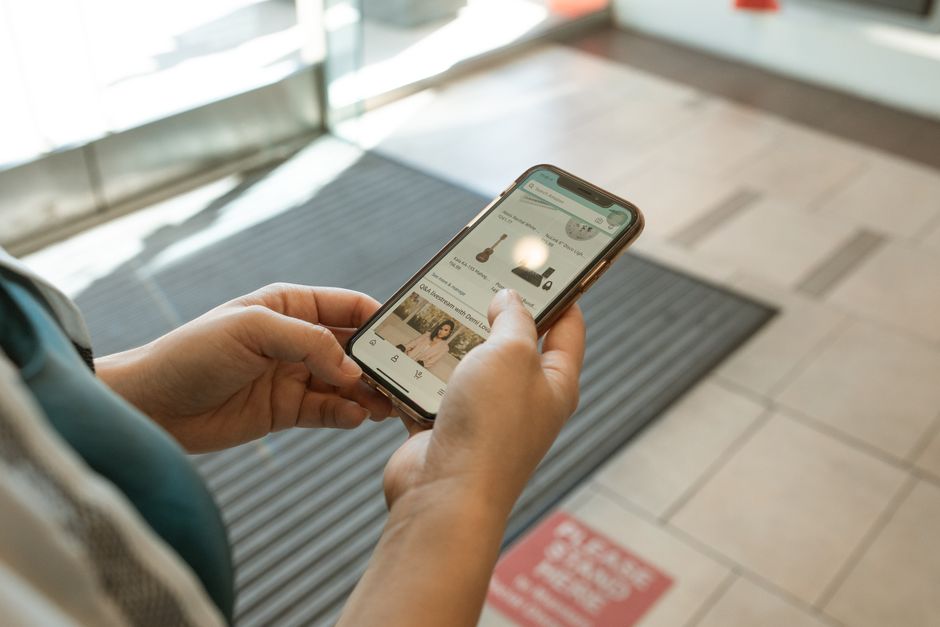
Prefer your phone? The steps are similar.
- Open the Amazon Shopping app and tap the ☰ menu (or profile icon).
- Go to Account → Prime Membership.
- Tap Manage Membership → Update, Cancel and More.
- Tap End Membership and follow the prompts to confirm.
Will You Get a Refund?
Whether you get money back depends on whether you’ve used Prime since your last billing date. Amazon generally issues a full refund only if you haven’t touched any benefits.
💳 Refunds typically process in 3–5 business days back to your original payment method.
Signed Up Through Apple or Google Play?
If you subscribed to Prime through your Apple ID or Google Play, Amazon can’t cancel it or refund you. You have to cancel in that platform’s settings.
- iPhone/iPad: Settings → your name → Subscriptions → Amazon Prime → Cancel.
- Android: Play Store → profile → Payments & subscriptions → Amazon Prime → Cancel.
Refund requests for these go through Apple or Google, not Amazon.
FAQ
Can I pause Prime instead of canceling?
Amazon doesn’t offer a true “pause.” But if you choose the let it run out option, you keep benefits through your paid period and simply won’t renew — a soft pause you can restart anytime.
What happens to my Prime Video channel add-ons like Paramount+?
Channel subscriptions (Paramount+, Max, etc.) are billed through Prime Video Channels. Canceling Prime typically ends these too, but cancel them separately under Prime Video → Channels to be sure you’re not still charged.
Is the FTC settlement refund still available?
In 2025 the FTC reached a settlement with Amazon over Prime sign-up and cancellation practices. Eligible members who enrolled between June 2019 and June 2025 may be able to claim a refund. Check the official FTC website or watch for a notification email — never trust refund links from unsolicited texts.
The Takeaway
Cancel Prime in a few clicks, pick cancel now only if you haven’t used benefits and want your money back, and if you joined via Apple or Google, handle it there. Then check the FTC settlement page to see if you’re owed a refund you didn’t know about. ✅